
What is in a Kmlog mileage report?
The basic date-range PDF lists completed trips with their dates, times, start and end locations, distances and configured allowance or vehicle-cost amounts. It also summarises the number of trips, distance and amounts for the period.
The example below uses Kmlog's committed report template with invented demonstration data. It is not a real GPS trip, a customer record or an approved claim. It was printed in a browser, so fonts and pagination can differ from a phone export. Newer app versions may include additional optional fields.
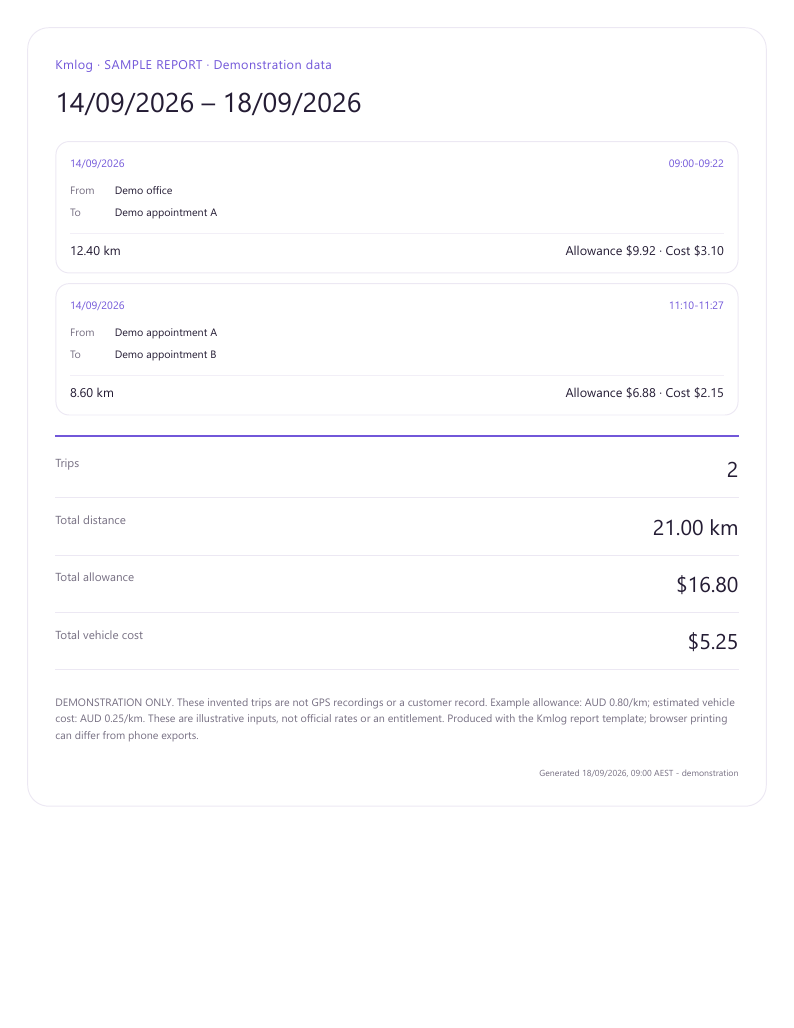
Read the example
- Reporting period
- 14–18 September 2026. Both example trips took place on 14 September; the chosen period can span days with no trips.
- Trip records
- 09:00–09:22: Demo office to Demo appointment A, 12.40 km. 11:10–11:27: Demo appointment A to Demo appointment B, 8.60 km.
- Total distance
- 12.40 + 8.60 = 21.00 km. These are invented values. In normal use, trip distances come from the recorded GPS journey.
- Allowance
- An illustrative AUD 0.80/km input gives AUD 9.92 + AUD 6.88 = AUD 16.80. This is not an official rate or an amount someone automatically owes you.
- Estimated vehicle cost
- An illustrative AUD 0.25/km input gives AUD 3.10 + AUD 2.15 = AUD 5.25. This estimate is separate from the allowance and is not proof of actual expenses.
- Generated time
- The time the report was created, not the time the journeys happened.
A trip without an allowance rate is not a zero-rate entitlement: the report excludes unrated trips from the allowance total and indicates that omission.
Prepare a report for employer or client review
- Confirm the reporting period, accepted journeys, agreed rate and required supporting information with the recipient.
- Review completed trips in Kmlog. Check dates, places and distances, and investigate missing or interrupted journeys.
- Choose the report's start and end dates and review the included records before generating the PDF.
- Open the exported file. Confirm the period, totals, labels and addresses, and check which optional details your installed version includes.
- Save the generated copy and share it through your normal approved channel. Supply additional work-purpose or expense evidence separately if needed.
The sample PDF does not contain a route map, a dedicated work-purpose field or odometer readings. Information visible inside the app is not necessarily included in every report format. Check the release notes for newer report options.
What this report does not establish
A mileage report documents journeys and calculations; it does not establish reimbursement eligibility, an NDIS charge or a tax deduction. A GPS distance is not a cumulative vehicle odometer reading, and a vehicle-cost estimate is not a receipt.
If a reviewer needs additional evidence, keep that alongside the PDF. Do not treat the example as an ATO-approved logbook. See our Australian work-mileage guide for the distinction between trip records and tax-record requirements.
Choose the right recording routine
For care visits, use the support-worker mileage workflow. If you are deciding whether to tap Start or use automatic detection, compare the two recording approaches before you begin.
Try it with your own work trips
Kmlog is available on iPhone. Android is in testing. New users receive a 14-day free trial, followed by 10 free trip starts per month. Optional KmPro subscriptions offer unlimited trip recording; check current prices in the app.
Explore the current features · Check release availability · Get help